Loading... document.addEventListener("DOMContentLoaded", function() { var days = ['Sun','Mon','Tue','Wed','Thu','Fri','Sat']; var months = ['Jan','Feb','Mar','Apr','May','Jun','Jul','Aug','Sep','Oct','Nov','Dec']; function tick() { var el = document.getElementById('wpclock-text'); if (!el) return; var now = new Date(); var h = now.getHours(), m = now.getMinutes(), s = now.getSeconds(); var ampm = h >= 12 ? 'PM' : 'AM'; h = h % 12 || 12; el.textContent = days[now.getDay()] + ', ' + months[now.getMonth()] + ' ' + now.getDate() + ' ' + String(h).padStart(2,'0') + ':' + String(m).padStart(2,'0') + ':' + String(s).padStart(2,'0') + ' ' + ampm; } tick(); setInterval(tick, 1000); });
Animoto Video Creation Software | Features, Pricing, Pros & Cons
📋 Table of Contents

Animoto — a cloud-based video creation platform offering 160+ templates, 1 million+ stock images, 3,000+ licensed songs, and screen and webcam recording for creating professional and personal videos without video editing experience.
Creating professional-looking marketing videos, social media content, and presentations no longer requires a video production team or expensive editing software. Cloud-based video creation tools have compressed what used to take a video editor hours into a workflow that most business owners can handle in twenty minutes.
Animoto is one of the longest-standing platforms in this space, founded in 2006 and built around a straightforward promise: upload your photos and video clips, pick a template, add music, and produce a polished video, no technical skills required.
With a free plan, competitive paid pricing starting at $8 per month, and a generous stock library, it remains one of the most accessible options for small businesses, creators, and solopreneurs who need video content at scale without large budgets.
This review covers everything you need to know about Animoto; such as features, pricing, pros and cons, how to use it, and how it compares to the alternatives.
What Is Animoto?
Animoto (animoto.com) is a cloud-based video creation service that produces videos from photos, video clips, music, and text. Founded in August 2006 by Jason Hsiao, Brad Jefferson, Stevie Clifton, and Tom Clifton, the platform is designed for users who want to create professional-looking video content without needing prior video editing experience or software expertise.
The platform operates entirely in a browser — no software to download, no rendering farm to manage. You select a template, customise it with your own media or content from Animoto's stock library, add music from the included song catalogue, and export. The result is a branded video ready for social media, email marketing, a website, or presentations.
Animoto is particularly well-suited for creating:
- Video marketing content and digital ads
- Social media videos and stories (Instagram, Facebook, TikTok, YouTube)
- Email marketing videos
- Employee training and onboarding videos
- Corporate presentations and event recaps
- Personal videos for occasions like birthdays, graduations, and weddings
Quick Verdict at a Glance
Animoto Pros and Cons
✓ What Animoto Does Well
- Responsive online service — reliable cloud performance
- 1 million+ Getty images in HD quality (Pro plan)
- 3,000+ commercially licensed songs — covers most use cases
- Simple and beginner-friendly — no video editing experience needed
- Clean dashboard with drag-and-drop functionality
- More affordable than most competitors — $8/month on annual plan
- Unlimited video creation even on the free plan
- Screen and webcam recording available on all plans
- Multiple aspect ratios — suitable for all major platforms
✗ Limitations Worth Knowing
- Only 160+ templates — fewer than some competitors like Canva
- Editing tools are relatively basic compared to professional-grade editors
- Interface can feel restrictive for users wanting fine-grained control
- Monthly billing doubles the cost — annual plan required for good value
- Free plan limits video creation to 10 minutes per week
Animoto Features — Full Breakdown
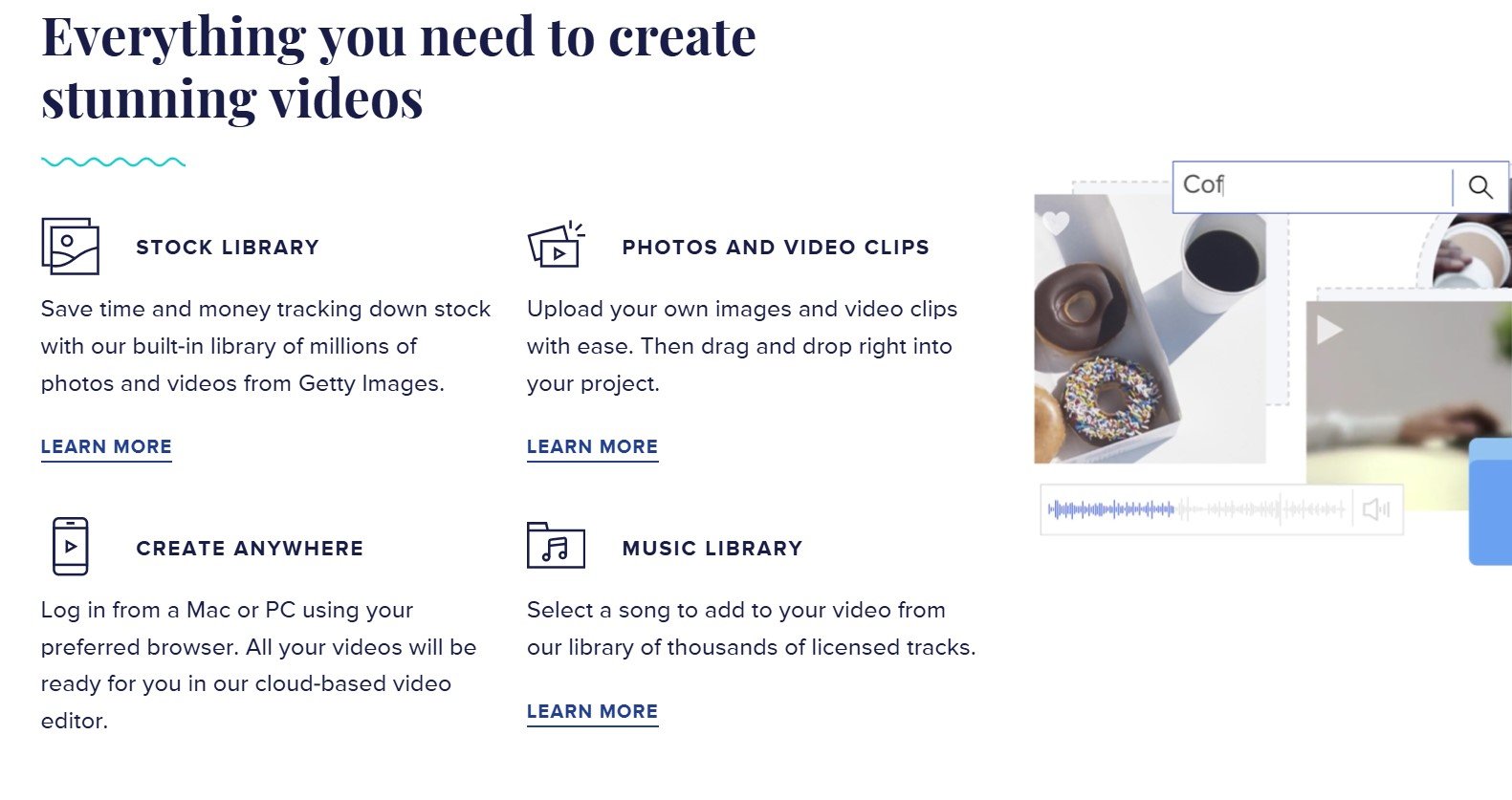
Animoto's feature set covers the core video creation workflow — from template selection and media upload through customisation, music addition, and export.
🎨 160+ Professionally Curated Templates
Animoto's template library is not just a collection of starting points — it is a curated, categorised toolkit that covers a wide range of video purposes. The template dashboard organises options by category on the left panel, including Celebrations, Education, Events and Teasers, Motivational, Real Estate, Products, Promotions, and Training.
Rather than offering thousands of mediocre templates (a common trap on some platforms), Animoto focuses on quality over quantity — 160+ templates that are handpicked, professionally designed, and genuinely usable. Each template includes pre-set timing, transitions, font choices, and colour schemes that work together coherently. Select a template, swap out the placeholder media and text for your own, and you have a production-ready video.
Alternatively, the Start from Scratch option gives experienced users a blank canvas with no template constraints — full control over every design decision from the first frame.
📚 Massive Stock Library — 1M+ to 100M+ Media Assets
Animoto's stock media library scales significantly with the plan tier:
- Free and Basic plans: Upload your own media. Limited stock access.
- Professional plan: Access to 1 million+ commercially licensed photos and videos from Getty Images — search by keyword and drag directly onto your timeline.
- Professional Plus plan: Access to 100 million+ commercially licensed stock assets — one of the largest stock libraries available in any video creation tool at this price point.
The search and drag-and-drop workflow is intuitive — type a keyword, browse results, drag the asset onto your content block, and adjust as needed (move, crop, zoom, rotate). Image editing capabilities are basic but functional for the platform's intended use case.
The music library includes 3,000+ commercially licensed songs (accessible from the Professional plan onwards), covering a wide range of genres and moods. You can also upload your own music on all plans, including the free tier — useful for branded content where a specific track is required.
🖥️ Screen and Webcam Recording
One of Animoto's more practical features is its built-in screen and webcam recording capability — available on all plans including the free tier. Rather than recording a tutorial or presentation externally and importing it, you can record directly within the Animoto platform and immediately edit the recording in the same workflow.
This is particularly useful for training videos, software walkthroughs, course content, and corporate presentations. The simultaneous screen and webcam recording option (available from the Professional plan) allows you to record your screen while showing your face in a picture-in-picture window — the format used by most educational and tutorial content on YouTube and social media platforms.
🏷️ Brand Kit and Customisation
Animoto's branding features scale with the plan tier:
- Free plan: 3 standard fonts and 30 colours
- Basic plan: Same as free but downloads are watermark-free
- Professional plan: 40+ fonts, unlimited colours, add your own logo, save up to 3 brand templates
- Professional Plus plan: 40+ fonts, unlimited colours, logo, save up to 25 brand templates, upload custom fonts, shared team brand workspace
The brand template feature (Professional and above) is particularly valuable for content teams producing regular video content — save your brand colours, logo, and preferred font combination as a template, and every new video starts with your brand standards already applied.
Animoto Pricing Plans

Animoto's four pricing tiers — from a genuinely functional free plan to the Professional Plus team tier at $39/month on annual billing.
- Unlimited video creation at 720p
- 50 royalty-free music tracks
- 3 standard fonts · 30 colours
- Screen and webcam recording
- Animoto watermark on exports
- Max 10 minutes of video per week
- 1080p HD video exports
- No Animoto watermark
- Download videos
- All free plan features
- All Basic features
- 1 million+ stock media (Getty)
- 3,000+ licensed songs
- 40+ fonts · Unlimited colours
- Add your own logo
- Save up to 3 brand templates
- Simultaneous screen + webcam recording
- All Professional features
- 100 million+ stock media
- Shared Team Workspace
- Save up to 25 brand templates
- Upload custom fonts
- Onboarding, training, and account manager
Animoto's pricing is significantly lower on annual plans than monthly billing — the Basic plan is $8/month (annual) vs $16/month on monthly, and similar doubling applies across other tiers. If you plan to use the platform longer than 6 months, the annual plan is the correct economic choice. Always verify current pricing at animoto.com.
How to Use Animoto — Step-by-Step
Choose a Template (or Start From Scratch)
Sign in to your Animoto account and click Create. Browse the template library — organised by category on the left panel — and select a template that fits your video's purpose. Alternatively, click Start from Scratch at the top-right for a blank canvas.

Step 1 — Browse templates by category (Celebrations, Products, Training, etc.) and select one that matches your video's purpose. Or click 'Start from Scratch' for full creative control.
Set Your Aspect Ratio
Click Ratio at the top of the design board to choose the aspect ratio for your video. The right choice depends on where you plan to share it:
- Square (1:1) — Instagram feed and Facebook feed posts
- Vertical (9:16) — Instagram Stories, TikTok, YouTube Shorts
- Landscape (16:9) — YouTube, website embeds, presentations

Step 2 — Set your aspect ratio based on where you'll publish. Square works well for most social feeds; Vertical for Stories and Shorts; Landscape for YouTube and presentations.
Upload Your Media Files
Upload your images, video clips, or logo files — or browse Animoto's stock library for media (available on Pro plans). At the bottom of the screen, you will see a timeline of content blocks. Select any block and drag your chosen media from the panel on the right onto it.

Step 3 — Upload your own images and video clips, or search Animoto's stock library for the visuals you need. Drag and drop media directly onto the content blocks in the timeline.
Edit the Text
Select a content block from the timeline at the bottom of your screen. Click on the text element within the block to edit it — type your desired text, then click and drag the text block to reposition it on the frame.

Step 4 — Click any text element on the selected block to edit it. Drag to reposition, or use the design settings to change font, size, and colour.
Add More Content Blocks
To extend your video with additional scenes, click the + sign at the end of the timeline to insert a new content block. Choose the block type that fits your next scene — text overlay, full media, split screen, and more. Reposition blocks by dragging them along the timeline.

Step 5 — Click the + sign at the end of the timeline to add new content blocks. Choose from different block types and drag them to reorder scenes.
Customise Your Video Design
Click Design in the top menu to open the design panel on the left. Choose from various themes, font combinations, and colour palettes. The preview on the right updates in real time as you make changes — you can see exactly how design choices affect the final video before committing.

Step 6 — Use the Design panel to choose a visual theme, font combination, and colour palette. The preview updates in real time so you can see changes immediately.
Adjust Video Settings
Click Video Settings in the right panel to access transitions, animations, video styles, and filters. You can also add your logo as a watermark from this panel — useful for branded marketing videos where every frame should carry your visual identity.

Step 7 — Access Video Settings to add transitions, apply visual styles and filters, and add a logo watermark to brand your video.
Fine-Tune in the Main Editor
Exit the Design tab to return to the main editor. Here you can make additional adjustments — scale images, add or change audio tracks, adjust frame timing, and reposition elements. Use the Undo button at the top to reverse any change you are not happy with. Preview the full video at any time using the Play button.
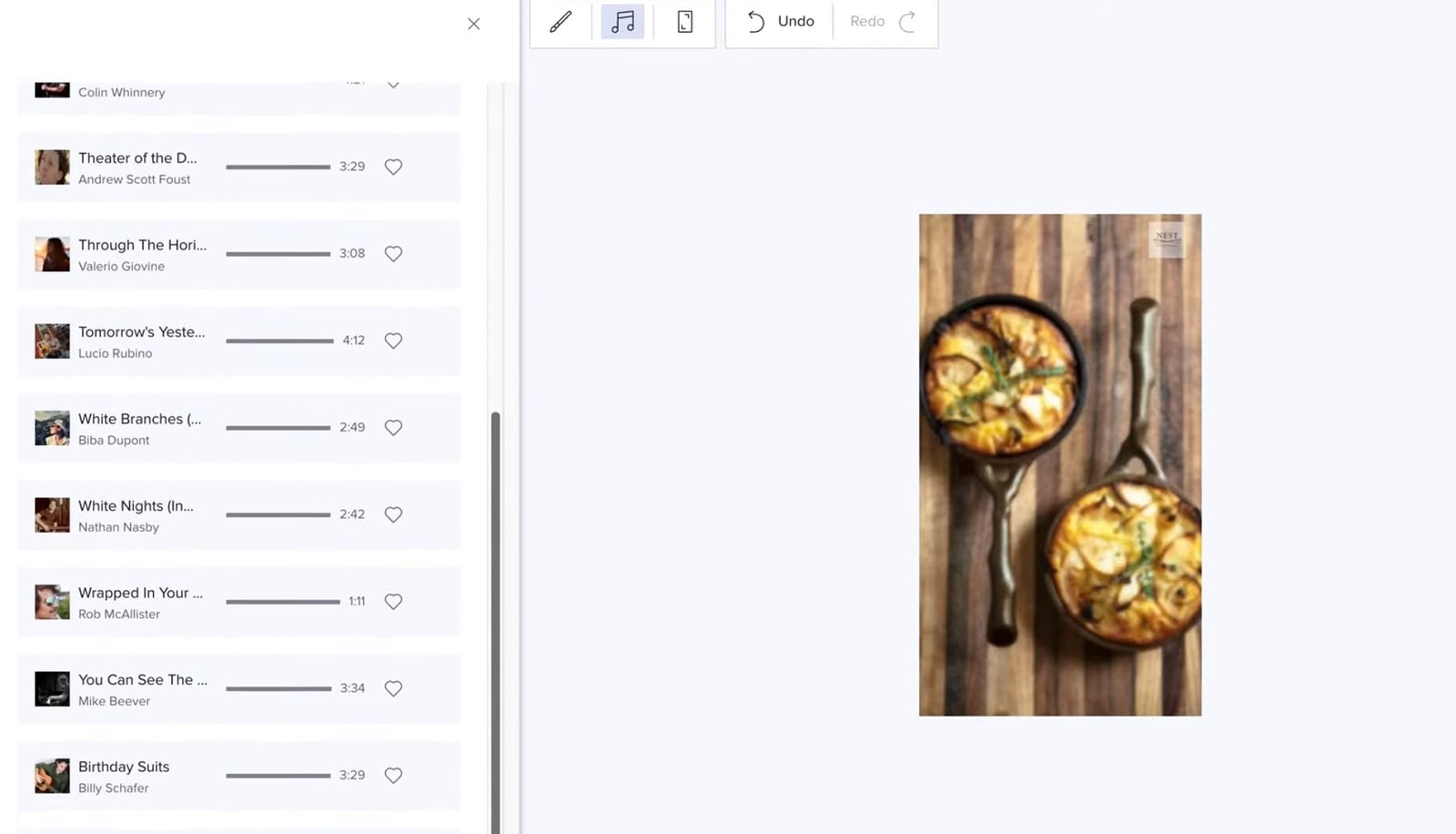
Step 8 — Return to the main editor for fine-tuning — scaling images, adjusting audio, repositioning frames, and previewing the full video before export.
Export or Share Your Video
When your video is ready, click Export at the top-right corner to render and download. Depending on your subscription tier, you can download the video directly or share it to social media from within the Animoto platform.

Step 9 — Click Export to render your video. Download to your device or share directly to social media from within Animoto. Basic plans and above can export without a watermark.
Animoto Alternatives
Placeit
Placeit is primarily a mockup designer — ideal for visualising how your brand designs look on physical products like apparel, packaging, business cards, and phone cases. It also includes video templates, making it a strong option for creators who need both mockup generation and basic video content from one platform.
Visit Placeit →InVideo
InVideo's free plan allows up to 10 minutes of short video clips per week and 4 exports weekly. Paid plans at $20/month restrict you to 50 minutes of video per month and 80 stock assets — less generous than Animoto's Professional plan at $15/month. Best for creators who need HD output from the free tier but are comfortable with the tighter paid plan restrictions.
Visit InVideo →Canva
Canva is a professional design and video platform with 1 million+ templates, 3 million+ stock assets, and extensive AI features from the free plan. The paid plan costs $100/month or more — significantly more expensive than Animoto's Professional Plus at $39/month. Best for teams needing a full design platform (presentations, social graphics, print materials) alongside video, rather than a dedicated video creation tool.
Visit Canva →Synthesia
Synthesia specialises in AI avatar video generation — you write a script and an AI presenter delivers it on screen, creating studio-quality presenter videos without filming anyone. Starting at $22/month (vs Animoto's $15/month), it is more expensive but serves a very different use case. Best for training videos, explainers, and corporate communications where a professional AI presenter is preferable to a slideshow format.
Visit Synthesia →Nova AI
Nova AI is best for subtitle generation, automatic translation, and text-to-speech features. Starting at $8/month — matching Animoto's Basic plan — it addresses a more specific use case: transcribing, captioning, and translating existing video content.
Best for creators who work with existing video footage that needs subtitles or translation rather than creating new videos from templates.
Visit Nova AI →Filmora (Wondershare)
Filmora is a desktop video editor offering professional-level editing effects, transitions, colour grading, and access to 10 million+ built-in stock media assets. Starting at $49.99/year, it is priced comparably to Animoto's Professional plan on an annual basis.
Best for creators who need desktop-level editing control, advanced effects, and multi-track timeline editing rather than the template-based cloud workflow Animoto provides.
Visit Filmora →WeVideo
WeVideo is designed specifically for educational settings — schools, teachers, and corporate training teams.
Starting at $4.99/month, it is the most affordable paid option on this list and includes collaborative video creation features tailored for classroom and learning management environments. Best for education sector users rather than business marketing creators.
Visit WeVideo →VideoStudio
VideoStudio by Corel is a desktop video editing suite with advanced features including colour grading, video masking, 3D titling, and audio cues. Starting at $59.99/year, it targets video enthusiasts and professionals who need desktop-grade editing quality.
Best for users creating keepsake videos, event productions, or advanced personal video projects rather than social media marketing content.
Visit VideoStudio →VEED
VEED is an AI-first online video creation platform starting at $9/month. It includes talking head video generation, digital clone creation, collaboration features, and a clean browser-based editor.
Strong for creators building faceless video channels, creating personal brand content, or producing at scale with AI assistance. A modern direct competitor to Animoto for online business use cases.
Visit VEED →CapCut
CapCut is an AI-powered video creation platform available as a mobile app (iOS and Android), desktop app, and browser tool. At $9.99/month for Pro features, it is strongly optimised for short-form social media content — the format and workflow that TikTok, Instagram Reels, and YouTube Shorts creators typically need. Best for mobile-first creators producing short-form vertical content at scale.
Visit CapCut →Pictory AI
Pictory AI specialises in converting existing text content (blog posts, URLs, scripts, and documents) into videos automatically. Starting at $19/month, it is particularly valuable for content marketers who want to repurpose written content into video without starting from scratch.
Best for bloggers, content teams, and marketers who have a content library they want to convert to video format efficiently.
Visit Pictory AI →Try Animoto Free Today
Create unlimited 720p videos with 50 royalty-free music tracks, screen recording, and 160+ templates — no credit card required on the free plan.
FAQs About Animoto Video Creation Software
Animoto's free plan is one of the more functional free tiers in the video creation market. You can create unlimited videos at 720p resolution, use screen and webcam recording, access 50 royalty-free music tracks, and work with 3 fonts and 30 colour options. The main limitations are the 10-minute weekly creation cap, the Animoto watermark on exported videos, and the inability to download videos for offline use without upgrading. For testing the platform and understanding whether it fits your workflow, the free plan is genuinely useful. For professional business use — marketing videos, client-facing content, or branded material — the Basic plan at $8/month removes the watermark and adds 1080p download capability.
Yes — social media marketing is Animoto's primary use case. The platform supports multiple aspect ratios including square (1:1 for Instagram feed), vertical (9:16 for Stories and Reels), and landscape (16:9 for YouTube). The template library includes categories specifically designed for promotions, products, and events. The Professional plan's 1 million+ Getty Images and 3,000+ commercially licensed songs provide the stock media coverage needed for professional marketing content. For small businesses and solopreneurs creating regular social media video content without a dedicated video editor, Animoto is one of the most cost-effective solutions available.
This is a deliberate pricing structure used by Animoto to incentivise annual commitments. The Basic plan is $8/month on annual billing but $16/month on monthly billing — a 100% premium for month-to-month flexibility. The same proportional premium applies across other tiers. This is not unusual in SaaS pricing, but it is more pronounced at Animoto than some competitors. The practical implication: if you plan to use Animoto for more than 6 months, the annual plan is the economically correct choice. If you only need the tool for a short-term project, the monthly option provides flexibility at a higher effective rate.
The key differences are in team collaboration features and stock library scale. The Professional plan ($15/month annual) is designed for individual creators and small businesses — it includes 1 million+ stock media, 3,000+ songs, 40+ fonts, unlimited colours, logo addition, and up to 3 saved brand templates. The Professional Plus plan ($39/month annual) is designed for marketing teams — it adds 100 million+ stock assets, a Shared Team Workspace for collaborative video creation, 25 saved brand templates, custom font upload, and a dedicated account manager with onboarding and training support. If you create videos independently, Professional is sufficient. If your team creates videos together, Professional Plus is the right tier.
Yes — Animoto is specifically designed for users without video editing experience. The template-based workflow removes the most technically complex aspects of video production: you do not need to manage a multi-track timeline, understand colour grading, or configure codec settings. You select a template, replace placeholder media with your own, edit the text, choose your music, and export. The drag-and-drop interface is intuitive enough that most users can produce their first complete video within 20 minutes of signing up. The trade-off is that experienced video editors may find the interface limiting — Animoto is not a replacement for professional editing software like Adobe Premiere or DaVinci Resolve, but it is not trying to be.
Yes. Animoto explicitly includes Training as a template category, and the built-in screen recording feature makes it particularly useful for software walkthroughs, process demonstrations, and step-by-step guides. The simultaneous screen and webcam recording (available from the Professional plan) enables the picture-in-picture presenter format common in training content. For businesses creating internal training videos, product onboarding tutorials, or educational content without a dedicated video production team, Animoto's workflow is practical and affordable. For more sophisticated interactive training content (quizzes, branching scenarios, LMS integration), a dedicated learning platform like WeVideo or Synthesia would be more appropriate.
Final Verdict — Is Animoto Worth It?
Animoto's position in the video creation market is clear and well-defined: it is the most affordable, accessible option for individuals and small businesses who need to create professional-quality video content without video editing expertise or a large budget.
The $8/month Basic plan removes the watermark and adds 1080p resolution at a price point that is difficult to justify not paying. The $15/month Professional plan's 1 million+ stock library, 3,000+ licensed songs, and brand template features make it a complete solution for most small business video needs.
The limitations (160 templates (fewer than some competitors), basic editing tools, and a restrictive monthly pricing premium) are real but specific. Animoto does not try to be a professional-grade editor or an AI video generation platform.
It tries to be the simplest, most affordable tool for creating polished video content from photos and clips, and it succeeds at that narrow but genuinely useful brief.
For Nigerian, Ghanaian, Kenyan, and other African entrepreneurs building digital businesses, content agencies, or social media presences, Animoto's pricing model is one of the most accessible in the market. The free plan is functional enough to produce real content, and the $8/month paid tier is one of the lowest credible paid video creation options available globally.
Get Started with Animoto Today
Free plan available — unlimited 720p videos, no credit card required. Paid plans from $8/month on annual billing.